2042 Docs & Support
Your Plan
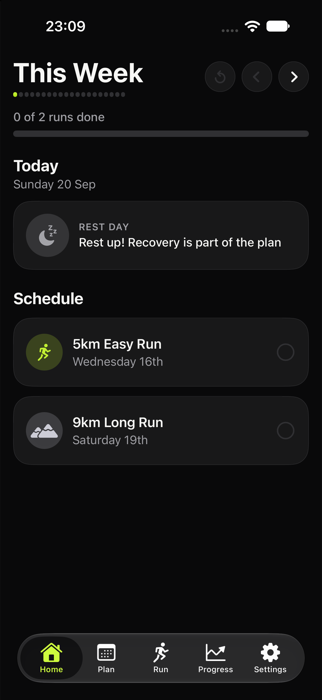
When you create a plan, 2042 lays out a full 20 week marathon build: base weeks, tempo and interval sessions, long runs, recovery weeks, and a taper into race day.
Home always shows what's happening today and the rest of the current week, so you never have to go hunting for what's next.
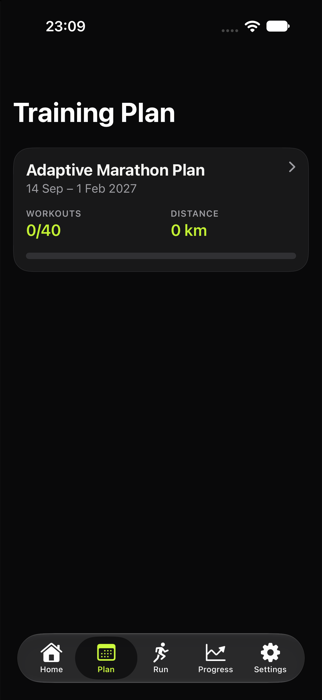
The Plan tab shows the whole block at a glance: total workouts, distance covered, and how far along you are. Tap in for the week by week breakdown.
Miss a day or start mid week and the plan adjusts around you. Weekly mileage keeps building from your last peak, not from a reduced recovery week.
Running
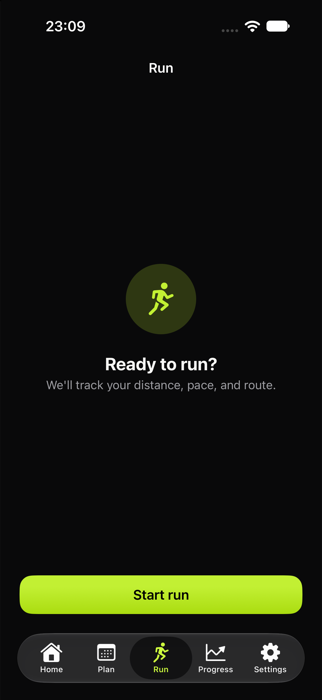
Start a run from your phone or from your Apple Watch alone, with your phone left at home. Either way it tracks distance, pace, and route.
Finish a run and it matches itself to your scheduled workout automatically through Apple Health. No manual logging.
Apple Watch
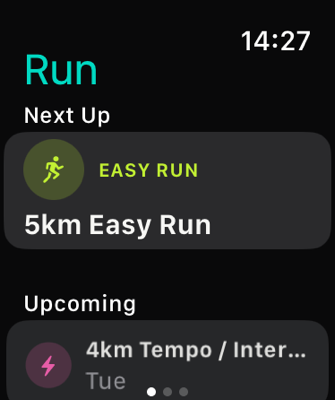
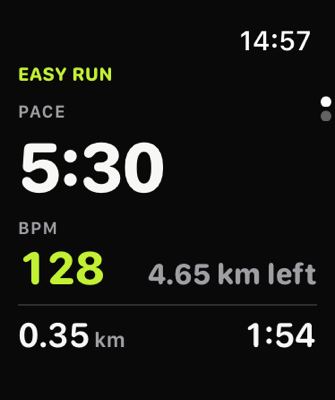
The Watch app works on its own, phone left at home. It shows your next scheduled run synced straight from the phone, so you can start it with one tap, and your pace, heart rate, distance and time track live on your wrist, along with how far is left to your goal.
Tempo and interval sessions tap your wrist when each segment starts, with countdown beeps as one is about to end, so you know when to push and when to ease off without looking down. You can turn these off under Haptic & Beep Cues in the watch's run settings. Finish the run on your watch and it's marked complete back on your phone within moments, no need to wait for Health to sync.
Your upcoming week and current theme carry over automatically from the phone, so the watch always matches what you'd see there.
Progress
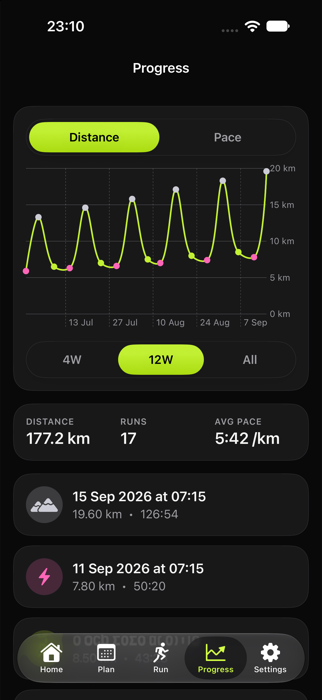
The Progress tab charts your distance and pace across the training block, alongside a history of every run you've logged, scheduled or not.
Themes
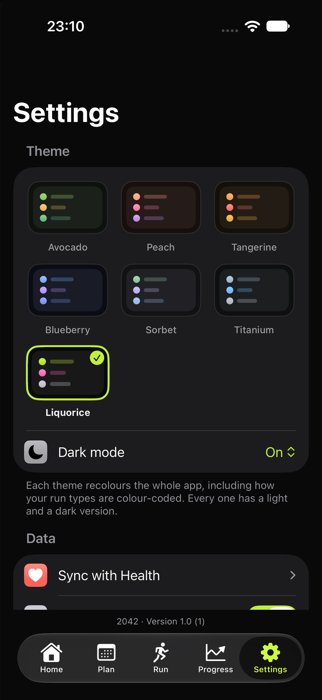
Pick from seven color themes in Settings, each with its own light and dark version. Every theme keeps run types (easy, tempo, long, race, cross training) color coded so you can tell a workout apart at a glance.
Frequently Asked
- Do I need an Apple Watch?
- No. Everything works from the phone alone. The Watch app is optional, for running without your phone.
- How does 2042 know I finished a run?
- It reads your workouts from Apple Health and matches them to your scheduled runs by date. You can also just start and finish a run inside the app directly.
- Can I sync to Strava?
- Yes, optionally. Connect Strava in Settings and completed runs upload automatically. Disconnecting removes the stored token from your device.
- What happens if I miss a run?
- Nothing breaks. The plan adjusts around missed days and keeps building your mileage from your last peak, not from wherever you left off.
- Is my data backed up?
- Optionally, to your own private iCloud account, if you turn on iCloud backup in Settings. See our Privacy Policy for details on what's stored and where.
Contact
Something not working, or a question not covered here? Reach us at support@datplate.au.